Using the Tab Viewer
Using the Tab Viewer
The tab viewer displays your guitar tablature with professional notation and lets you play it back with realistic audio. This page explains every control so you can get the most out of it.
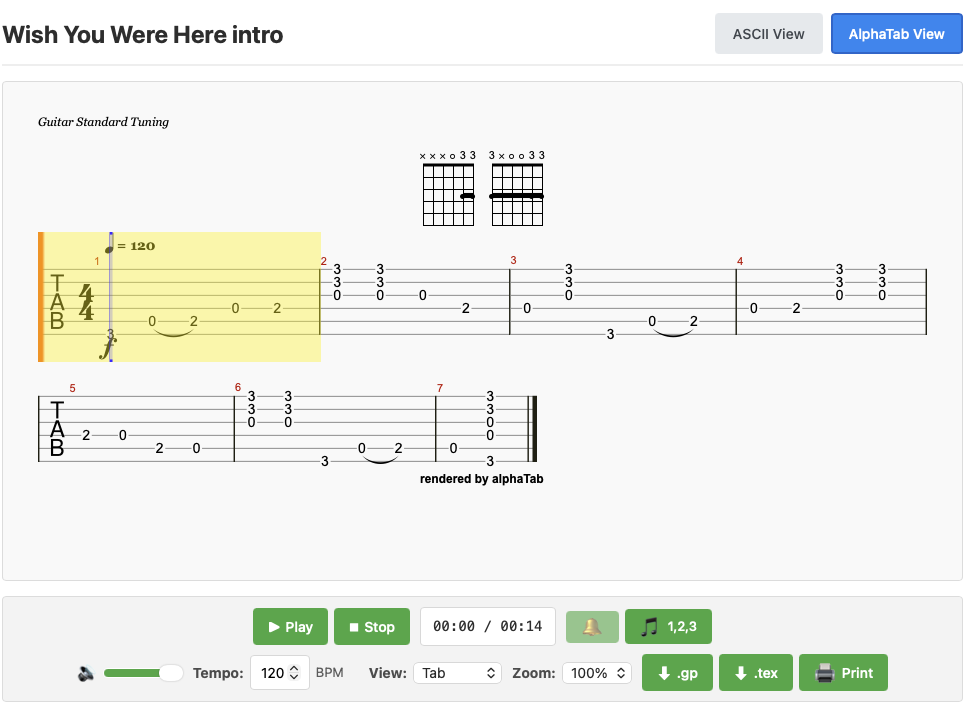
The Viewer Area
When a tab loads, the notation is drawn below the controls. By default you see tablature (tab) — fret numbers on lines representing each string. You can switch to standard music notation or a combined view using the View selector.
A moving cursor follows along as the tab plays, highlighting the current note or beat in real time.
If the tab viewer cannot load (for example, due to a slow connection), an ASCII tab fallback is shown automatically. You can also switch between the two views at any time using the buttons described in Switching Views.
Playback Controls

| Button | What it does |
|---|---|
| ▶ Play | Starts playback from the current position. If playback is paused, it resumes from where it left off. |
| ⏸ Pause | Pauses playback without resetting position. (This button is only visible while playing.) |
| ⏹ Stop | Stops playback and returns to the beginning of the tab. |
Time display — next to the playback buttons you will see a time counter in MM:SS / MM:SS format showing the current position and total length of the tab.
Metronome

Click the 🔔 Metronome button to cycle through five volume levels:
- Off — no metronome click
- Quiet (🔔¹)
- Normal (🔔²)
- Loud (🔔³)
- Loudest (🔔⁴)
The button turns orange when the metronome is active and returns to its default colour when off.
Count-In

The 🎵 Count-In button adds a one-bar rhythmic count before playback begins, which is useful when you want to play along. When enabled, the button turns orange and shows 1,2,3. Click it again to turn the count-in off.
Volume
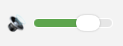
The 🔊 Volume slider controls the overall playback volume from 0 % (silent) to 100 % (full). A tooltip shows the current percentage as you drag.
Tempo
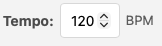
The Tempo (BPM) field lets you change the playback speed. The value is in beats per minute. You can enter any value between 40 and 240.
- The default value is the tempo saved in the tab.
- Slowing the tempo down is a great way to learn a difficult passage.
- Use the up/down arrows in the field, or type a number directly.
View — Switching Notation Style
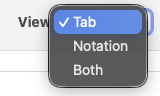
The View dropdown changes what is drawn in the notation area:
| Option | What you see |
|---|---|
| Tab (default) | Guitar tablature only — fret numbers on string lines. |
| Notation | Standard music notation on a staff — useful if you read sheet music. |
| Both | Standard notation stacked above the tablature. |
Zoom
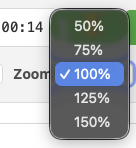
The Zoom dropdown scales the notation up or down. Available sizes: 50 %, 75 %, 100 %, 125 %, 150 %. The default is 100 %.
If the tab looks too small on a mobile screen, try 125 % or 150 %. If you want to see more of the tab at once, try 75 % or 50 %.
Exporting the Tab

Two export buttons let you download the tab in industry-standard formats:
| Button | Format | Open with |
|---|---|---|
| ⬇ .gp | Guitar Pro 7 (.gp) | Guitar Pro, TuxGuitar, and most tab editors |
| ⬇ .tex | alphaTex (.tex) | Text editor or any app that supports alphaTex notation |
Printing
The 🖨 Print button opens your browser's print dialog with the tab formatted for printing. For the best results, use landscape orientation in your print settings.
Switching Between AlphaTab and ASCII Views
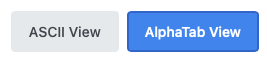
At the bottom of the viewer you will find two view-toggle buttons:
- AlphaTab View — the default. Shows professional graphical notation with audio playback.
- ASCII View — switches to a plain-text version of the tab. Useful on slow connections or for copying the tab into another app.
If the tab viewer is taking a long time to load, a "View ASCII Tab" button will appear automatically so you can see the tab right away while it continues loading in the background.
Techniques Shown in the Tab
The tab viewer understands and displays all of the common guitar techniques saved in Guitar Tab Creator tabs:
| Symbol | Technique |
|---|---|
| h | Hammer-on |
| p | Pull-off |
| / or \ | Slide up / Slide down |
| b | Bend |
| r | Release (bend release) |
| v | Vibrato |
| t | Tap |
| x | Muted / dead note |
Supported Instruments
The tab viewer supports all instrument types that can be created in Guitar Tab Creator:
- 6-string, 7-string, and 12-string guitar
- 4-string, 5-string, and 6-string bass guitar
- Ukulele
- Banjo
- Mandolin
Each instrument uses the correct tuning and string count. Playback uses a matching MIDI instrument sound.
Tips and Troubleshooting
The viewer is loading slowly
The viewer loads audio and font files from the internet the first time it runs. On a slow connection this can take a few seconds. If it takes longer than 5 seconds a button will appear to let you switch to the ASCII tab view while you wait.
No sound during playback
- Check the volume slider is not set to 0.
- Check your system volume and that your device is not muted.
- Some browsers require a click or tap on the page before audio can play. Try clicking Play again after interacting with the page.
- Safari on iOS and macOS sometimes needs an extra interaction to unlock audio. Tap or click anywhere on the page first, then press Play.
The notation looks very small
Use the Zoom dropdown to increase the display size to 125 % or 150 %.
I want to practise slowly
Lower the Tempo (BPM) value to slow the playback without changing the pitch. The count-in button can also help you time your entry.
Chord diagrams are not showing
Chord diagrams appear automatically when three or more notes are played simultaneously. If a section looks like single notes in the original tab, no diagram will be shown for those beats.